

Main menu

At the top of the screen you find the main menu. It lets you move between the different areas of the system.
Both the main menu and the tile area in the tile menu can be configured. Names of areas and the tiles they contain can be adjusted to your requirements, so you control the structure of your system.
Guides and video tutorials
During your test phase, the “Guides and video tutorials” menu is available. From there you reach the getting-started guides, contact the support team or request a quote.
Tile menu
Clicking on any area opens a tile menu. Like a browser, the tile menu shows which area and which level you are currently on. The “hamburger” icon takes you to the top level; the house icon takes you to your home area.
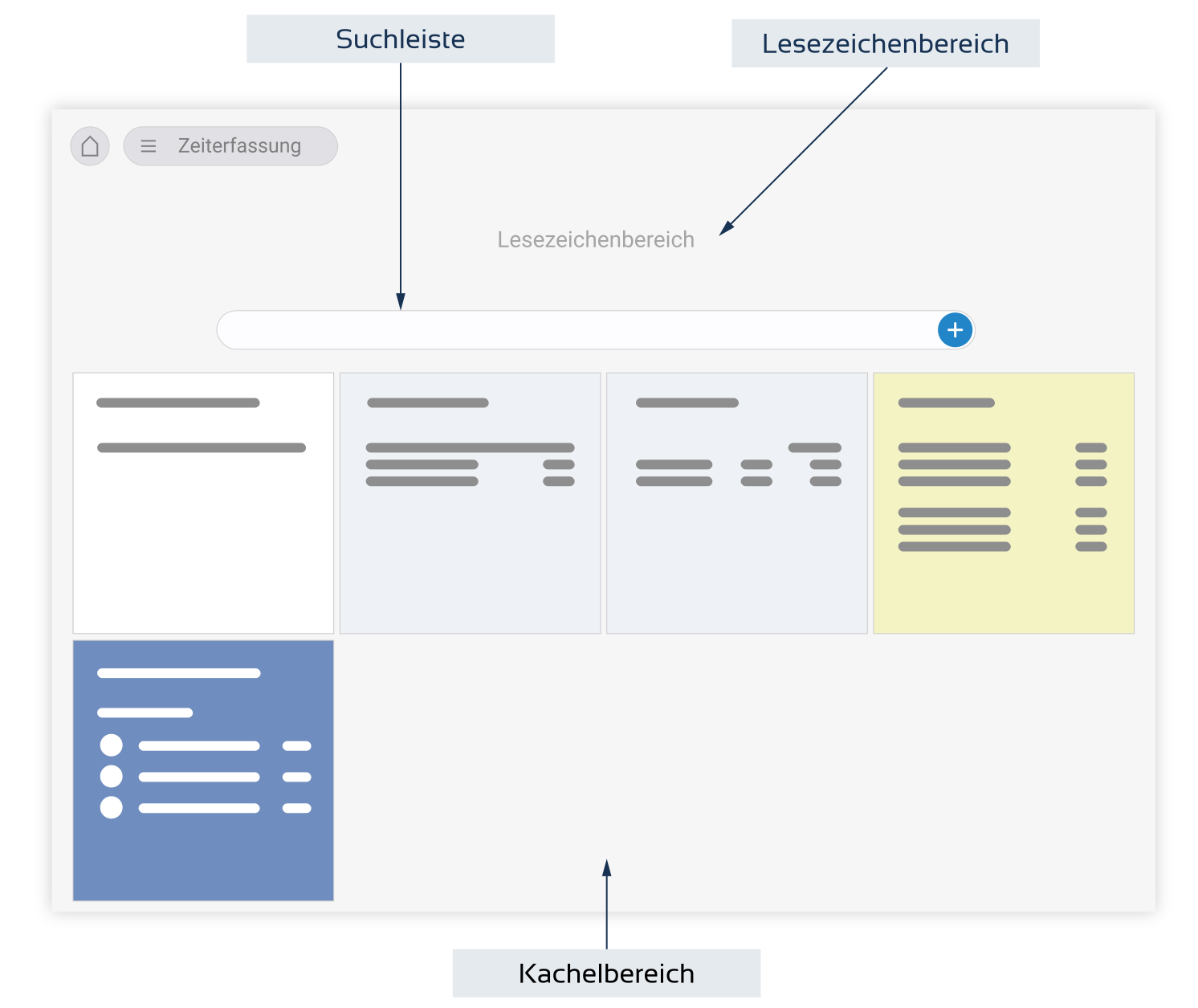
Tile area — the central section of the tile menu contains the tiles for the selected area. Click a tile to open the corresponding module or list. Tiles can be grouped, renamed and reordered to fit how your team works.
Action box — on the right side of the tile menu you find the action box with the most important quick actions for the current area, such as “Create item”, “Add contact” or “Start stopwatch”.
Home area
The home area is your personal dashboard. It shows the tiles you use most, recent activity, your open tasks and time tracking. Each user can configure their own home area.
Sidebar
On the left edge of the screen the sidebar offers quick navigation. It contains shortcuts to favourites, recently used elements and configurable widgets. The sidebar follows you across every area, so you keep one click away from your most important content.
Status bar
At the bottom of the window you find the status bar. From there you can check in and out (attendance time), start and stop the stopwatch, see notifications and messages, and access search. The status bar is visible at all times across every area.
Element and data lists
Most areas in teamspace contain element lists (e.g. list of customers, projects, invoices) or data lists (e.g. line items in an invoice). They share the same controls:
- Filter and search at the top to narrow down quickly.
- Sortable columns by clicking the header.
- Bulk actions via checkbox selection.
- Quick edit by clicking directly into a cell.
- Column configuration to show, hide and reorder columns.
- Export to Excel or CSV.
Once you know one list, you know every list — the pattern repeats across the software.
Detail manager
Each element (customer, project, document, ticket) has a detail manager. The detail manager shows the element from different perspectives via tabs: Overview (timeline and key facts), Master data (all detail fields), and module-specific tabs (e.g. Items for a quote, Contacts for an organisation).
The detail manager is the most important screen for working with a single element. Every change you make is logged in the audit trail.
More getting-started guides
- Add a contact
- Create a project
- Log project time
- Quote workflow
- Order confirmation
- Invoice workflow
- End-to-end process guide
Reviewed in a requirements check
You have questions about the rollout? In a 15- to 30-minute meeting we discuss your specific requirements, free of charge and without obligation.