
Without the add-in
- Every enquiry is copied into the ticket system by hand
- The status of an email stays hidden in the mailbox
- Attachments are scattered across individual mailboxes
- Follow-up emails land somewhere, not on the item
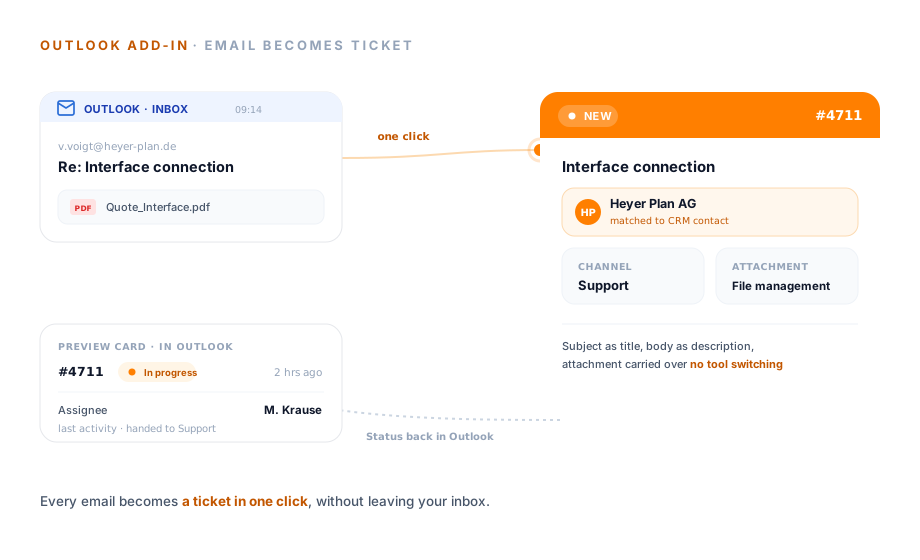
An Outlook add-in is an extension that brings a business application straight into the Outlook window. With teamspace that means a customer email becomes a ticket with one click, complete with channel, status and owner, and you follow what happens next on a preview card inside Outlook. Part of the Service Desk software in teamspace, with no module surcharge.
Without and with the add-in
In the inbox
Instead of copying emails into the system by hand, the add-in creates the ticket where the email already sits. From the inbox you choose channel, status and owner, and the status comes back to Outlook as a preview card.
Posteingang
v.voigt@heyer-plan.de
Re: Anbindung Schnittstelle
Guten Tag, beim Import über die neue Schnittstelle bricht der Lauf ab. Können Sie sich das ansehen?
Als Ticket anlegen
Vorschaukarte in Outlook
Bearbeiter
M. Krause
Kanal
Support
Eingegangen
vor 2 Std
letzter Vorgang · an Support übergeben
Aus der Mail wird ein Ticket mit eigener Nummer. Den Status sehen Sie weiter in Outlook.
From the email
Many enquiries still arrive through a personal mailbox rather than the service address. Anyone who wants to keep an overview would have to copy such emails into the system by hand. The add-in takes that step off your hands.
“We mostly work with the budget column.”

Tracking
Creating a ticket is one half of the job. The other is knowing what became of it, without switching to a second tool. For that the add-in shows a preview card for the ticket right inside Outlook.
Next step
We open the add-in with your Outlook and your Microsoft 365 environment and walk the path from email to ticket through once together.
Sync
For many staff, Outlook is the primary store for contacts and calendar. So that teamspace and Outlook do not drift apart, the add-in syncs both sides, in both directions.
Attachments
Attachments are often the most valuable part of an email: contracts, quotes, specifications. They are hard to find again in an Outlook search. The add-in files them in a structured way.
teamspace in numbers
The Outlook add-in does not come from a third party but from the same house as teamspace, developed for over twenty years in the German-speaking SME market.
developed in Darmstadt
customers across DACH
active users
data processing exclusively
Scope
What happens in the mailbox, and what IT needs to know for the rollout.
Installation
A tool that everyone in service uses must not be a hurdle to set up. The add-in sits on the Microsoft platform, where IT already manages things.
Comparison
Where a connected Outlook add-in differs from copying the email across by hand.
Feature
Copy the email by hand
teamspace with the add-in
RecommendedUse cases
The add-in brings the email into the system. These areas go deeper into what happens before and after, each on its own page.
Three ticket types, channels, status and responsibility in detail.
Learn moreEnquiries from email, phone and web service become a ticket.
Learn moreCustomers open tickets themselves and see the status.
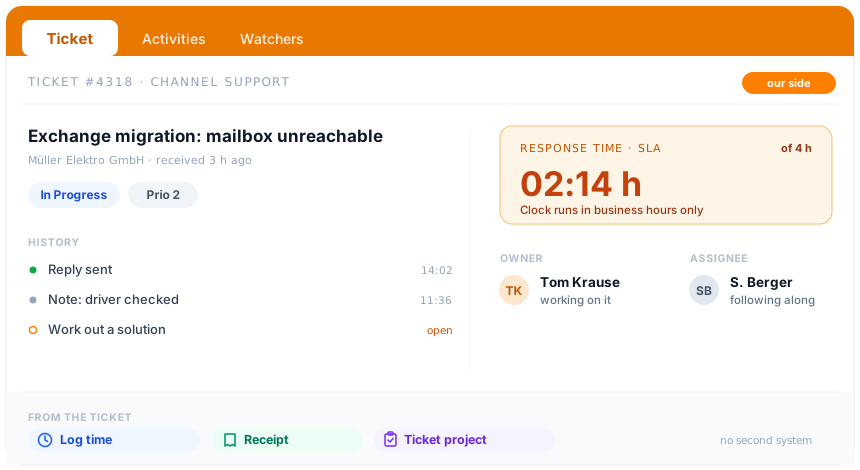
Learn moreResponse times per customer, with time remaining and a warning in the ticket.
Learn moreService time to the minute, billed by interval or as a flat rate.
Learn moreTurn a ticket into a main project, sub-project or work package.
Learn moreSecurity
Emails and attachments hold what matters to customers: terms, contracts, personal communication. The add-in passes to teamspace only what the user puts into the relevant context, and teamspace processes this data exclusively in the EU.
At a glance
The add-in brings the single email into the system. How teamspace runs the whole service, from channels through SLA and escalation to billing from the ticket, is shown in the Service Desk software overview.
To the Service Desk softwareContext
An Outlook add-in is an extension that embeds a business application into the Outlook window. Instead of jumping back and forth between mailbox and system, you handle the handover where the email already sits: the enquiry becomes a ticket, the status stays visible in Outlook, and contacts, appointments and attachments sync.
The effort pays off not from the first email, but from the point where customer enquiries come in through personal mailboxes and have to be distributed across the team. As soon as several people look after the same customer and no one can say for certain who is currently handling an enquiry, the mailbox is no longer enough. From then on teamspace carries every enquiry forward as an item, without anyone retyping it, and the assignee sees in familiar Outlook what became of it.
Glossary
Frequently confused terms, placed precisely within the teamspace model.
Related modules
An email rarely stands alone: the customer in CRM, the project behind it, the hour that gets logged. Here are the shortest routes there.
The email sender matches the customer record via the address, and the ticket stays linked to the contact.
A growing request becomes a ticket project with its own structure, progress and finances.
Service hours are logged straight from the ticket onto the project and form the basis for billing.
In the everyday service and sales work of a provider, a large part of the communication flows through Outlook. Enquiries, contact details, appointments and attachments arise in emails and then have to find their way into the service, CRM or project system. Anyone doing this by hand loses time and creates gaps.
The teamspace Outlook add-in closes this gap in the mailbox itself. A customer email becomes a ticket with one click, an attachment lands in the right file folder, and the assignee continues to see in Outlook what became of the enquiry. Without switching tools, without double entry.
Intro call
Show us your inbox and your Microsoft 365 environment, and we'll tell you where the add-in saves work and where your mailbox is enough.