
Everything in one place
- Appointments, availability and absence together
- Four views: week, month, list, availability
- Your own and the team's appointments in one view
The team calendar brings together appointments, availability and absences for the whole team in a single view: your own appointments, leave from HR, external appointments and project milestones. In sync with Outlook and common calendars, optionally connected to Microsoft Teams. Part of the [teamwork software](/teamwork/), included in every edition.
At a glance
Three things decide whether a shared team calendar works day to day. All three run through the same view.
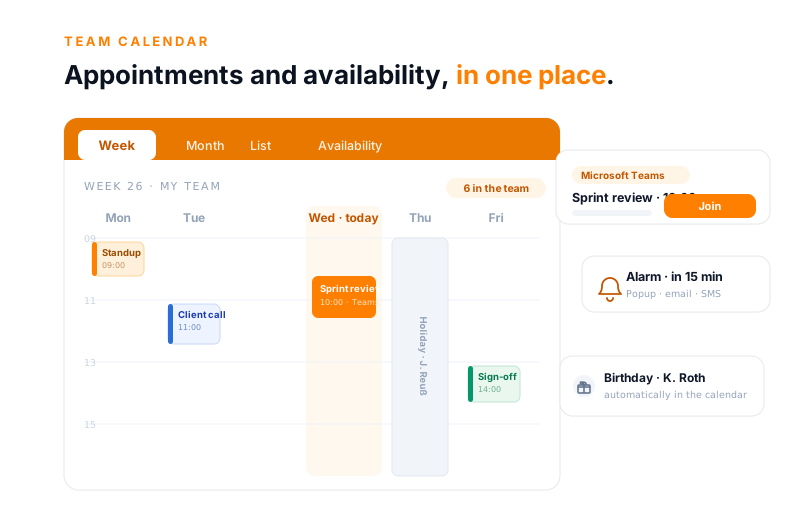
The team calendar is not just your own schedule. Your own appointments, your colleagues' availability, leave and sickness from HR, external appointments, birthdays, project phases and committed resources all come together in one view. So you can see at a glance who is on what and when.
Eigene Termine
Woche · 8
Urlaub & Krankheit
aus HR
Außentermine
Home-Office
Geburtstage
Team & Kunden
Projektphasen
+ Meilensteine
Ressourcen
verplant
Ein Kalender. Was im ganzen Haus Zeit kostet, steht an einer Stelle.
Presence
In the colleague overview you can see straight away who is in the office, who is working from home and who is out on an external appointment. That saves queries and trips down the corridor.
Anyone planning an appointment can see straight away who is actually available.
Finding a slot
Whoever creates an appointment invites participants and sees on the timeline whether someone is already committed at the chosen time. The system flags clashes as soon as availability is not set to "free".
That way the slot everyone can make is set before the first invitation goes out.
“Staff in both support and project planning can see orders and invoices. That was not possible before.”

Microsoft Teams
With the optional Microsoft Teams integration, you create a Teams meeting directly inside the calendar appointment, activated by the customer using their own Microsoft account. The system sends the invitation automatically to internal and external participants, including when it changes.
More on this on the Microsoft Teams integration page.
In 15 minutes
In 20 minutes we go through where your appointments, availability and absences sit today and what a shared calendar brings together from that. You get an honest assessment of whether teamspace is a fit.
At a glance
What makes the difference between scattered Outlook mailboxes and one view the whole team relies on.
for the whole team
Appointments, availability and absence together
per appointment
Free, Tentative, Busy, Away
to be reminded
Popup, notification, internal message, SMS, email, report
in Darmstadt
5 POINT AG, self-funded
Project calendar
The team calendar can be used as a project calendar. It then shows the current project phase and the milestones, so that an appointment stands in the context of the project status rather than on its own.
How structure, phases and milestones emerge from projects is shown in project management.
The comparison
In detail
Six things the team calendar handles in passing, day to day.
Recurring appointments with a freely chosen rhythm and a stop rule by count or date.
Agree a shared slot within the team instead of negotiating it by email.
Popup, notification, internal message, SMS, email or report, at the appointment or at a time of your own.
Public holidays by your location, stored in the system and carried forward for the years ahead.
Your own colours and categories for appointments, so a client, a training session or an internal matter can be told apart at a glance.
Public, restricted or private per appointment, governed through central user groups.
Synchronisation
The team calendar keeps itself up to date with common calendars through the CalDAV interface, on the computer as on the smartphone. So you have your team's appointments with you on the move too.
Term
A team calendar is a shared calendar in which a team keeps its appointments, availability and absences in one place. Unlike a personal calendar, it shows not only your own appointments but also when colleagues are available or out of the office.
In teamspace, the team calendar is part of collaboration: leave and sickness come from HR, project phases and milestones from the projects, contacts from the CRM. Through the CalDAV interface it syncs with Outlook, Apple Calendar, Google Calendar and the smartphone.
The benefit grows with the team: the more people keep their times up to date, the more reliably the calendar shows who is working on what and when, and the more easily a meeting finds a slot that suits everyone.
More from teamwork
The team calendar is one area of the teamwork software. These areas sit right next to it and share the same user groups.
Open items with an owner, due date and status, linked to the project and hours.
Learn moreTasks as cards that move through status columns from waiting to done.
Learn moreTasks at sprint cadence, with a backlog and acceptance at the end of the sprint.
Learn moreKnowledge kept central and versioned, linked to projects and customers.
Learn moreTopic areas, news and polls, separated by their own permissions.
Learn moreStore documents with versioning, on the project and the customer.
Learn more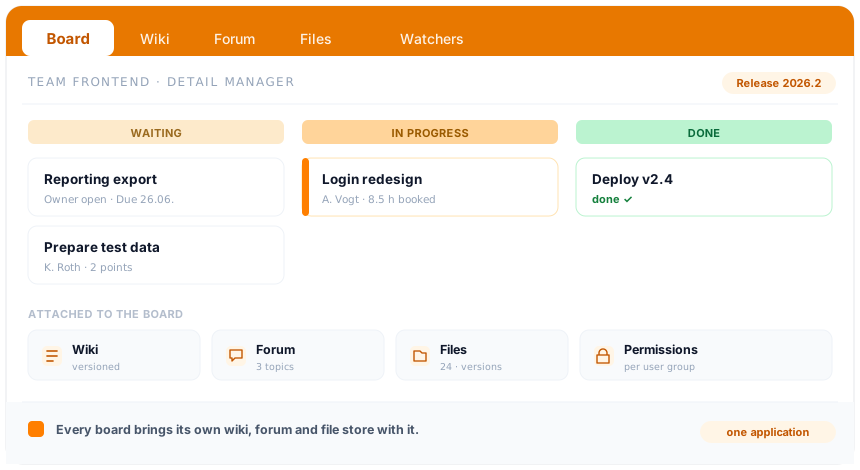
At a glance
The calendar holds the time, the board the work, the wiki the knowledge. How teamspace brings appointments, tasks, knowledge and files together in one application, every board with its own wiki, forum and file area, is shown in the overview of the teamwork software.
To the teamwork softwareBackground
A calendar only becomes useful once the team trusts it. As long as appointments sit in individual mailboxes, leave on an Excel list and external appointments in someone's head, no one knows reliably who is reachable when.
One view instead of many islands. In the team calendar, your own appointments, your colleagues' availability and the absences from HR stand side by side. Whoever plans a meeting sees in the same window who is free, instead of asking three people.
Connected to the work. Because the calendar knows project phases, milestones and contacts from the system, an appointment never stands on its own. A client call hangs off the contact, a review off the project phase, a deadline off the milestone.
Taken along on every device. Through CalDAV and teamSync, the same calendar is there on the computer, on the Mac and on the smartphone. Whoever is on the move plans with the same state as the office.
Related modules
Anyone keeping appointments in the team almost always also works on the project, the customer and the booked hour. Here are the shortest routes there.
From the appointment on the project comes the plan: structure, phases and milestones, up to date by the day.
From the contact comes the customer file: appointments, records and history in one place.
From the appointment comes the booked hour: presence, project time and absences.
Your questions
You show us how appointments, leave and external appointments come together at your place today. We show what a shared calendar simplifies from that. Then you decide whether the switch is worth it.
Intro call
We discuss your appointment and availability requirements and how leave, projects and external appointments can be brought together in one view. You get an honest assessment of where the switch is worth it.