

Attendance time
…is the time your team member spends at work on a given day. Attendance time tells you when they started, when they stopped and how long their breaks were.
Project time
…is the time a team member has spent on a specific task during the day. Project time tells you how long someone worked on a project. Logging it is easy.
In short: attendance time tells you how long someone worked, project time tells you what they worked on.
You can track both in teamspace, or work with only attendance time or only project time.
If you capture both, you can post “slices” or “blocks” of attendance time onto the projects you worked on that day — e.g. for customer projects or internal operations. The diagram below illustrates the principle:
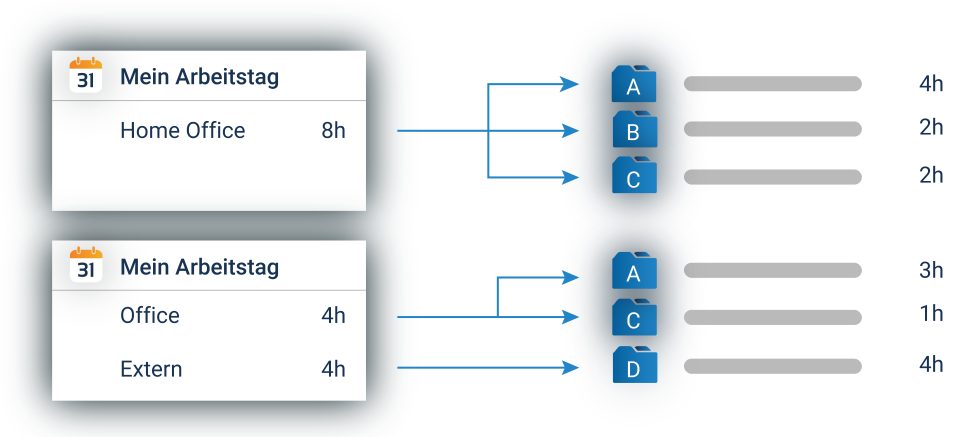
When using both time types, the sum of project times on a day usually equals the attendance time of that day.
For our example, we take an order from “Licht? Ja! AG”. For this order, we want to log a two-hour consulting session against the related customer project.
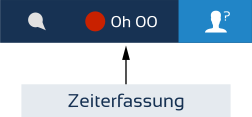
Attendance time is captured in the status bar at the top. There you find a button to check in and out at any time.
1. Logging time
There are several ways to log time in teamspace. Depending on which suits your team and your day best, you can combine the methods below freely.
Logging via “My day”
My day is a tile in teamspace from which you control both attendance and project time. You find it under the Time tracking menu item, or by clicking the time tracker in the status bar.
On the left you see the attendance time captured for the current day. The calendar above lets you switch to other days.
To log a new project time, click the ”+” symbol or Log time in the action box. The dialog below opens.
In the dialog you first select the project you want to log time against. You can pick whole projects or individual work packages. Times that can be billed to the client are marked via the category field. For our example we click “Customer project Licht? Ja! AG” and select the “Consulting” work package via the arrow at the end of the line. Under category we choose “billable”.

The duration is entered in the internal time field. Mark hours by typing “h” after the number. The lightbulb icon suggests pre-built entries. If it is billable, you can additionally enter how much should be billed in the billable field. In our case we enter 2h as internal time.
The description field captures details of the activity. Optionally, you can save the entry as a template. Click Save and the logged time appears in the list under “My day”.

Logging via stopwatch
If you want to track service time to the minute, use the stopwatch in teamspace. Click My day in the time tracking area. In the action box on the left you find the Start stopwatch button. In the dialog that opens, select the activity. The stopwatch starts automatically and appears in the status bar. You can stop it any time, the elapsed time is then posted to the selected project.
Logging inside a project
You can also log time directly inside a project. Open, for example, the “Customer project Licht? Ja! AG”.
In the overview of the project structure you see all work packages assigned to the selected project — Consulting at 16 hours and a one-day training. At the end of each row there is a context-menu button that opens the action menu. In the “Time tracking and project status” area, select Log time. The same time-logging dialog opens as in “My day”.

More getting-started guides
- Learn the user interface
- Add a contact
- Create a project
- Quote workflow
- Order confirmation
- Invoice workflow
- End-to-end process guide
Reviewed in a requirements check
You have questions about the rollout? In a 15- to 30-minute meeting we discuss your specific requirements, free of charge and without obligation.