
Individual menus per department
teamspace ships proven processes — and a fully customisable user interface so every department finds what they need quickly.
Standard processes, individual look
Business software should support your team’s work as well as possible. That is why teamspace offers standardised processes that have proven successful at many companies. It is also important for success that your employees find their way around the system intuitively. A uniform interface based on the “one size fits all” principle is often of little help here. That is why the user interface, menu and dashboards in teamspace can be extensively customised.
A user interface made to measure
No company is the same as another. That is why teamspace offers a menu that can be adapted individually to your needs. Would you like to align the menu items with your processes? No problem.
Alternatively, many companies fall back on a menu structure that follows the function areas.
Sub-menu items can also be configured freely. This gives you maximum freedom when putting together your user interface.
Creating different menus
Since September 2022 you can also create several different menus and assign them to different user groups. This gives you the option of tailoring the menu individually to the requirements of your departments.
Your sales team could then work with the following layout, for example.
The project office (PMO), on the other hand, uses a completely different menu.
All employees use the same system, but it presents itself to each person in the way they can work with it best. This offers you several advantages.
Company-wide dashboards
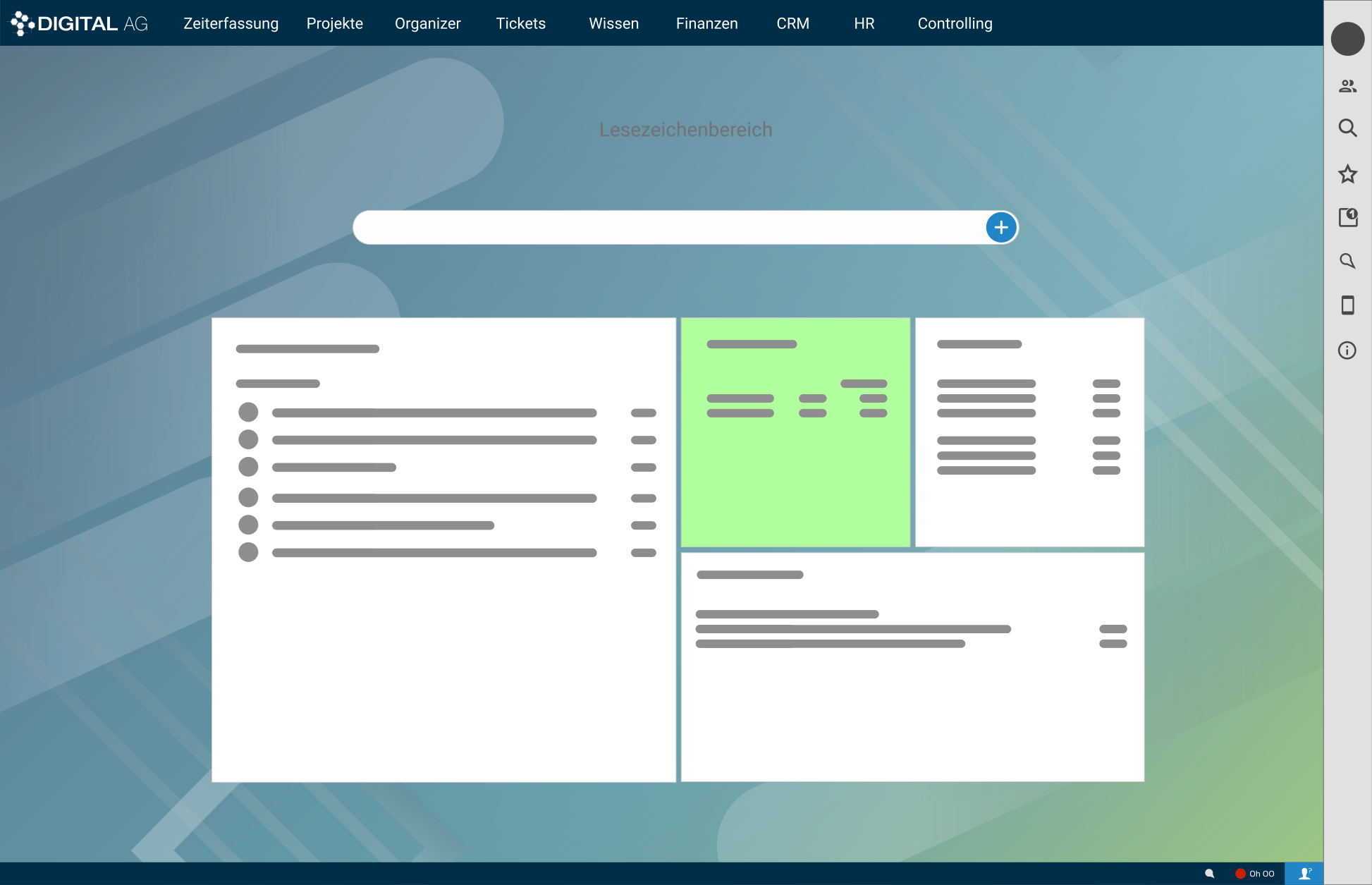
The teamspace user interface is based on tiles. Each tile represents a particular content that you reach when you click on it. The important information is already on the tile itself. So they are quick navigation and dashboard in one.
For each menu item you decide individually which tiles are shown there, in what size and what colour. What the user sees in the end also depends on their permissions.
An example: only those who are authorised to view their colleagues’ leave overview also have access to the corresponding tile. In total, this results in very versatile options for designing the teamspace user interface to your wishes.
Personal home area
Every user has a personal home area, which you reach by clicking on the company logo. There, employees can bundle all the content that matters to them. You decide which tiles are shown and have everything important at a glance. Companies also have the option of rolling out certain tiles company-wide. They are then automatically available to every employee.
Fancy more?
Then simply get in touch with us directly. Our advisory team will be happy to show you in a short demo how you can map your work digitally with teamspace.



Read on
Does this fit your requirements?
Do you have questions on this topic? In a 15- to 30-minute meeting we discuss your specific requirements, free of charge and without obligation.
Software that fits your setup?
In a 15-minute meeting we look at your requirements together and give an honest first opinion.