
Highlight 1
Every card is a real record
Tickets, work packages, invoices or contacts sit on the board as cards, not as a retyped note. Changing the status of a card means changing the record itself.
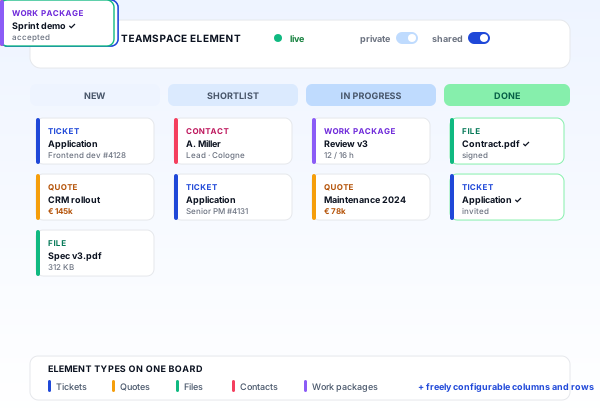
A board in teamspace is a view on real records, not a second card wall next to the system. Tickets, work packages, invoices and contacts sit on the same board and are steered through freely chosen columns and rows. Private as a personal overview, shared as steering for the team.
At a glance
Three properties that make the difference in daily use.
Highlight 1
Tickets, work packages, invoices or contacts sit on the board as cards, not as a retyped note. Changing the status of a card means changing the record itself.
Highlight 2
Columns map the status, rows the owners, accounts or priorities. You set both axes per board and adjust them later.
Highlight 3
A board steers a team or simply serves you as a personal pinboard. Who sees what is governed by the same user groups as in the rest of the system.
Card and record
A board in teamspace is a view on existing records, not a note tool of its own. A card is almost always a real record: a ticket, a work package, an invoice or a contact. The board only shows where that record currently stands.
So every record lives once. The board is one of many possible views on it, not a second place where the same information ages apart.
One record, several boards
The same ticket appears on the support team's board, on the customer board and on your personal pinboard. It stays one record; whoever changes the status on one board changes it on all of them.
Ticket #4711 · printer down
one record · lives once
the support team works it
the customer sees the same status
the manager keeps an eye on it
One record, on every board. Move the card on one, and the status changes on all.
How a board comes about
Name, type (kanban, scrum or pin) and the question of private or shared. A new board takes a few clicks.
Columns map progress, for example Waiting, In progress, Done. Rows group by owners, accounts or priority. Both axes can be adjusted at any time.
Pick an element from the CRM, service desk or project structure, or fill a board automatically with the open tasks of a project, directory or employee.
Cards travel via drag and drop between columns and rows. Filters by owner, tag or element type switch views on and off, without changing the board.
A record may sit on several boards. Completed boards can be archived without the records behind them disappearing.
“We mostly work with the budget column.”

The comparison
Feature
Classic card wall
teamspace board
RecommendedWhere you stand
You show us your column and row logic and which records belong together, we show how that becomes a board. Afterwards you know whether teamspace fits.
Two axes
Columns and rows are independent and freely chosen. Whoever has a concrete steering need in mind builds the board for it, instead of bending to the tool.
Both axes can be adjusted later without losing cards. A board gains one more column or reorders the swimlanes by a different criterion.
Types and pinboard
When you create a board you choose a type. It differs mainly in the preset statuses and can be converted into another at any time.
Every employee also has a personal pinboard automatically. Via the pin on an element's profile card you attach it with a relevance level from Low to Top, quickly reachable through the status bar. A quiet overview of what you want to keep in view, without anyone reading along.
The same records, three different forms of steering, without a dedicated special tool.
one board per role
lead to close
inbox to booked
Context on the board
A board is more than its columns. In the detail manager every board brings its own context, in its own tabs.
So a board is not just a sorting surface, but the place where a topic sits together with its knowledge, its discussion and its files.
Fixed method
For continuous task flow with firmly defined statuses.
For teams that work in fixed sprint windows.
More from Teamwork
Boards are one area of the Teamwork software. These areas border directly on it and share the same user groups.
Open points with owner, deadline and status as a card source.
Learn moreWhat is needed more often sits versioned in the wiki of the board.
Learn moreTopics and polls that belong to a board.
Learn moreAgree quickly and hand the record straight into the conversation.
Learn moreAppointments, leave and milestones of the team in one view.
Learn moreStore shared files versioned on the project and customer.
Learn more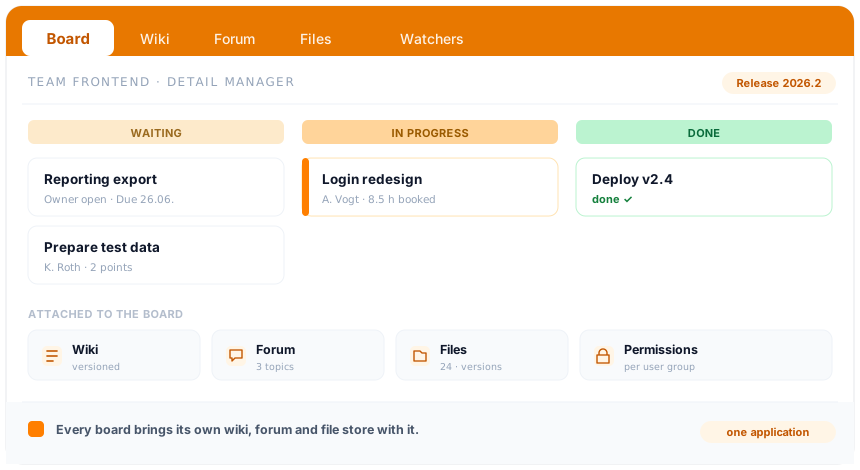
In overview
A board sorts the records, the rest of the collaboration sits right beside it: wiki, forum, team calendar and chat. In teamspace they sit in one application, and every board already brings its own wiki, forum and file drawer. How that interacts is set out in the overview of the Teamwork software.
To the Teamwork softwareBackground
In practice boards take in several island tools at once: the separate recruiting tool, the dedicated approval tool for inbound invoices, the spreadsheet pipeline in sales and the personal to-do app. Not because a board covers every special application in every depth, but because the records already live in teamspace and only need a sensibly chosen view.
The state instead of the search. Because a card is the record itself, the board shows the real state, not a retyped snapshot. Nobody asks by email where something stands, and nobody keeps two lists that drift apart the next day.
In the EU, in every edition. Boards belong to the Teamwork layer and are included in every edition, with no surcharge for a separate module. The data sits in an ISO-27001-certified data centre in Frankfurt am Main, exclusively inside the EU, in line with the GDPR. The contractual partner is 5 POINT AG from Darmstadt.
Related modules
What sits on the board as a card is almost always a project, a customer or a logged hour. Here are the shortest routes there.
From the work package on the board becomes project work: structure, phases and planned versus actual, up to date.
The contact on the board is the customer file: records, history and terms in one place.
From the record on the board becomes the logged hour: billable or internal, kept apart.
A board in teamspace is not what you know from Trello or a classic whiteboard app. There a card is a note that someone creates and maintains by hand. In teamspace a card is almost always an existing record: a ticket, a work package, an invoice or a contact. The board shows where that record currently stands.
From this follows the biggest difference in daily use. Whoever changes the status of a card does not change an entry on the board, but the status of the original. Whoever attaches a file attaches it to the record itself. Whoever logs an hour logs it on the work package behind the card. The record lives once, the board is only one of many possible views.
Columns and rows are independent and freely chosen. Columns map phases or status, rows are swimlanes for owners, topics, accounts or priorities. Both axes can be adjusted later without losing cards. A board gains one more column or reorders the swimlanes by a different criterion.
What sits on the board is just as flexible. Tickets next to work packages, invoices next to contacts. Whoever has a concrete steering need in mind builds the board for it, instead of bending to the tool.
Boards are not necessarily team tools. Per board the creator decides whether it is visible only to them or shared with a team, an account or the whole organisation. That makes a board also a personal pinboard: a private board onto which own topics, watched tickets or critical projects travel, without anyone reading along. Management and account owners often use this as a quiet overview of things they want to keep in view.
Whoever works with a fixed methodology like kanban or scrum finds two preconfigured variants under Project management: the kanban board for continuous task flow and the scrum board for teams with fixed sprint windows. Both differ mainly in their preset statuses and use the same boards foundation as the freely configurable boards on this page.
Requirements call
We go through your column and row logic and the records to be linked and tell you what is worth it for you and what is not.