
Release of the configuration
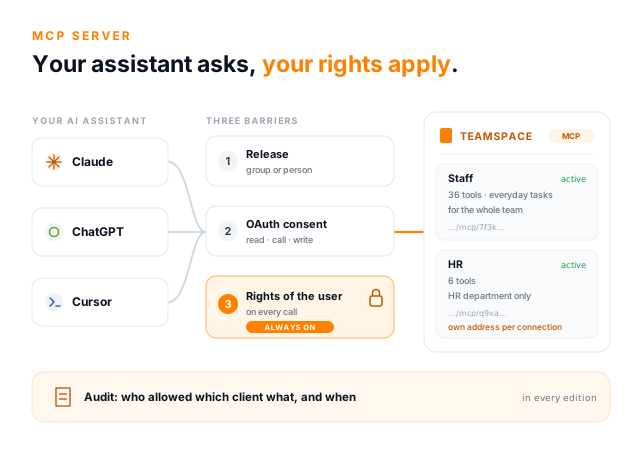
Process 1Every connection carries an authorised group or person. Anyone outside it cannot get past the address, even if they know it.
The teamspace MCP server connects the cloud ERP teamspace with AI assistants such as Claude, ChatGPT and Cursor. An MCP server is the interface through which an AI assistant works with a piece of software under the Model Context Protocol (MCP): the server offers tools, and the assistant calls them when a question needs them. It is included in every edition, and your administrator can build as many MCP servers of your own as you like in teamspace, each with the tools a team actually needs. You ask in plain language, your assistant fetches the answer from your tenant, and it does so with exactly your rights.
In brief
MCP stands for Model Context Protocol, an open standard through which AI assistants work with other software. Anthropic introduced it at the end of 2024 and published it openly. The MCP server tells the assistant which tools exist, for example "search tickets" or "project information". When you ask a question, the assistant decides for itself which tools to call and turns the results into an answer. Because MCP is a standard, teamspace is connected once and then works with the assistant of your choice. If you switch provider later, the connection stays the same.
In the chat it looks something like this. You ask: "Which projects have used more hours than planned this month?" The assistant answers with the current figures from teamspace. You write: "Please create an open item for Anna on that, due Friday." Shortly afterwards the open item is in teamspace, without you having opened the application. Creating it requires two things: your MCP connection includes a writing tool for open items and has been enabled for you, and you are allowed to create open items for colleagues in teamspace yourself.
Behind this lies a simple idea. A report answers the question someone anticipated when setting it up. An assistant answers the question you have right now, even across several areas: tickets, projects and contacts in one question, without opening three views.
It matters just as much what MCP is not. It is no replacement for reports that are needed regularly, and no guarantee of identical wording, because an assistant phrases things afresh every time. Nor is it a technical system account: in teamspace, an MCP connection is always tied to a person and their rights.
Examples
The questions look quite different depending on the role. Each uses tools from the teamspace MCP server's toolkit and requires two things: an MCP connection with the right tools has been enabled for you, and you have the necessary rights in teamspace itself. What you see in the answer depends on those rights.
In practice
Weekly marketing meeting, project review, team catch-up: anyone who meets regularly has a pile of minutes after a few months. If they are kept as Markdown files in the teamspace file store, an AI assistant can work with them directly. And the next set nearly always starts from the previous one: strike what is done, carry over what is open, add what is new.
For this your administrator sets up a separate MCP connection, say "Minutes MCP", with the tools for file contents. They read, create and edit text files such as Markdown. Then you tell your assistant, for example:
The assistant reads the old minutes, creates a new Markdown file and enters the changes. Instead of copying items across by hand, you say in one sentence what has changed since last time.
For every connection and every single tool you decide which operations are allowed: read, write, delete. The minutes connection gets read and write for file contents and nothing else, released for instance only to the people in that meeting. More on this further down under writing and audit.
Setting up
The administrator puts the connection together in teamspace. Users only enter an address in their client and give consent once.
Under Configuration, Interfaces, MCP configurations: name, language, description and the authorised group or person allowed to use it.
By category from the toolkit, keeping an eye on the token estimate in the connection's profile.
Each connection has its own address following the pattern https://your-tenant/mcp/identifier. It can sit on the intranet; it is not a password.
Enter the address as a connector, check and allow on the teamspace consent page. Client ID and secret stay empty; teamspace registers the client itself.
Test with "Who am I in teamspace?". If your name comes back, it works.
Several connections
The teamspace MCP server is not a fixed, unchangeable offering but a toolkit. Your administrator puts together as many connections as your organisation needs. Anyone in two groups simply links both in their client. A connection belongs to exactly one tenant: anyone working in several tenants gets a separate connection for each.
A general connection for everyone with read-only tools, an HR connection for the HR department only, a sales connection with CRM tools for the sales team. Each gets its own address and its own permission group.
Each configuration has a language in which its tools are described. For an English-speaking team, you create a connection of its own.
Remove the Active flag and the connection stops responding immediately, including for clients that are already linked.
If the administrator adds or removes a tool, the client sees the new list the next time it connects. Nobody has to set up their connector again.
Security
Any access through MCP has to clear three independent barriers. If one of them fails, nothing happens.
Every connection carries an authorised group or person. Anyone outside it cannot get past the address, even if they know it.
On first connection, teamspace asks what the client may do. Without that consent there is no access. It applies per client and can be withdrawn again.
The normal permission profile applies to every single call, exactly as in the interface. Anyone who may not see a personnel file in teamspace will not see it through an AI assistant either. Two colleagues asking the same question therefore get different answers. You do not need a second permission concept.
Writing and audit
On the consent page, teamspace lists three permissions separately: read MCP server, so the client knows which tools exist, call tools, to run them, and write data. Writing is therefore a permission of its own, granted separately. The usual approach is to build the general connection with read-only tools and keep writing tools for a separate connection with a narrower release. An assistant can get things wrong, and it has no sense of whether a change had consequences.
The page also shows the redirect address, for Claude for example https://claude.ai/api/mcp/auth_callback. It is the most important checkpoint: if the domain does not match the service you are connecting, cancel.
For administrators there is the audit of OAuth permissions under Configuration, Interfaces: who allowed which client what, and when. Alongside it are the registered OAuth clients with the permissions actually granted, and the tenant client policies that set which clients are allowed in the tenant at all. Take a right away from someone in teamspace and it is gone through MCP straight away too. You never maintain permissions twice.
Short call
In a first call we go through who in your organisation wants to ask what, and sketch the right MCP connections with tools and releases.
Supported clients
Sign-in runs over OAuth, a standard MCP-capable assistants support. In principle, then, any client can be connected. The list names the clients we have tried out ourselves, and where the address goes in each.
Tailoring tools
In teamspace, your administrator can build as many MCP servers of your own as you like, with a few clicks and no programming. To the AI assistant, each connection is a separate MCP server with its own address and its own selection of tools from the toolkit. It pays to make use of that rather than packing everything into one connection.
When it connects, an AI assistant receives the complete list of tools and has to keep it in mind for every question. That list takes up room in the model's working memory. The more tools, the longer each answer takes, and the more often the assistant reaches for the wrong one among similar tools. A few well-chosen tools give better answers than many, most of which have nothing to do with the question.
teamspace shows you this while you put a connection together. Each connection's profile carries a token estimate, such as "42.2k tokens (fits comfortably)" for a connection called Staff with 36 tools for everyday tasks. Tailoring works best from the task: write the use case down in one sentence, take only the tools that sentence needs, and add Who am I.
Choosing tools is not a security setting. It cuts a connection to its purpose and makes it faster. Who sees what is decided by the permission profile alone. Your administrator can also give each tool a name of its own, because the name is the text the assistant reads.
The toolkit
The tools are grouped by area. For each tool you decide whether it may read, write or delete. The catalogue keeps growing; what counts is the selection in your tenant.
Editions
The MCP server is included in every teamspace edition at no extra charge. The REST API, by contrast, is only available from the enterprise edition. For many customers on the office edition, MCP is therefore the first way to connect teamspace to other tools at all.
The two routes solve different problems. The API is for software that always does the same thing, such as the nightly handover to a BI tool. MCP is for questions you do not know in advance. Once a question turns out to be asked the same way every week, that is the moment to build it properly as a report or via the API. The side-by-side comparison is on the AI in teamspace page; applications of your own built on the API are covered under vibe coding.
Connect and extend
First call
Watch your assistant work with teamspace.
In the call we link an MCP connection to Claude or ChatGPT and ask the questions your team actually has. You will also see the consent page and the audit.
In a short first call we work out which teams ask which questions, and what the right MCP connections with tools and releases look like.